Creality SPARKX i7 Multicolor: How $399 AI-Monitored 4-Color Printing Changes Everything
swiftwand swiftwand.ai
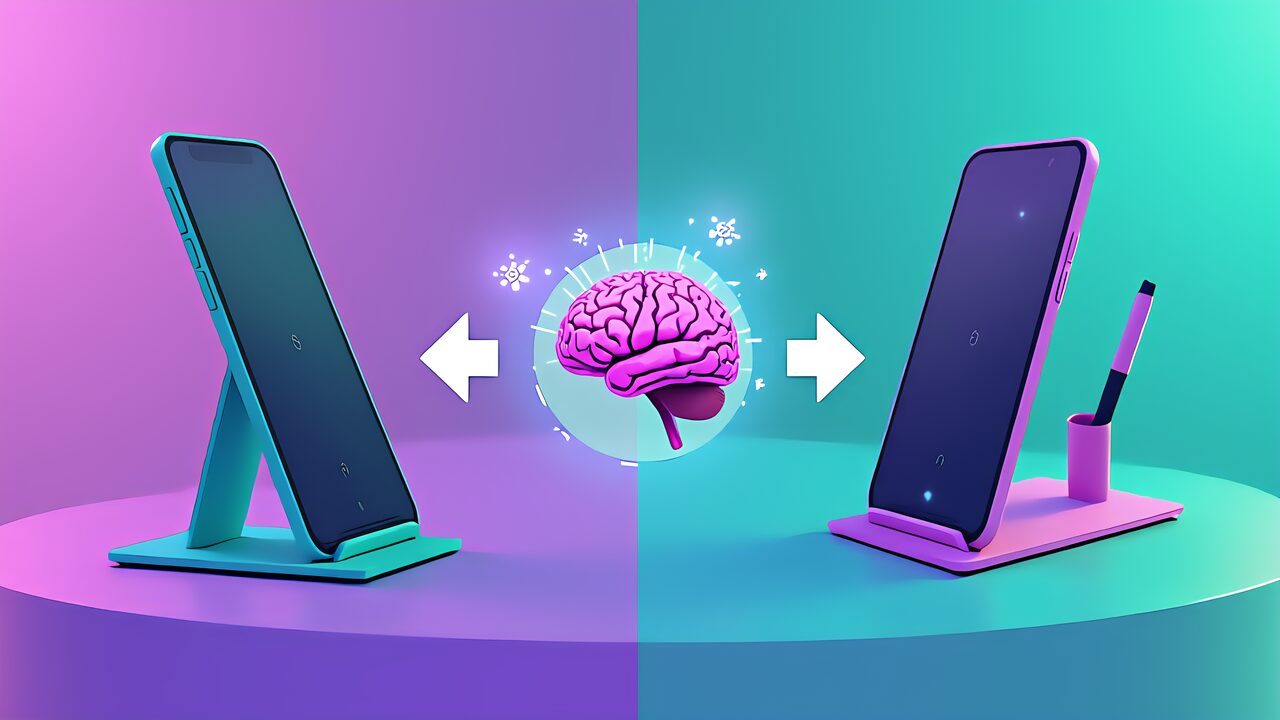
The first thing you do after buying a 3D printer is download. Print models from Thingiverse. Furthermore, smartphone stands. Cable clips. Plant pot covers—millions of free models are available. However, as you print more.
A moment inevitably arrives: “If only this were 5mm wider. It would fit perfectly.” Specifically. Modifying existing models to fit your exact needs is what AI 3D model customization is all about.
Previously. This modification work required skills in Blender or Fusion 360. Moreover, importing STL files. Editing meshes. Performing boolean operations. And re-exporting demanded dozens of hours of CAD learning. However, in 2026.
AI has completely removed this barrier. Additionally. By combining Blender MCP or OpenSCAD with AI. You can modify existing models with plain language instructions like “change the width to 75mm” or “add four M4 screw holes to the bottom.”
This article is the final installment (Part 7) of the “AI × 3D Print Workflow Practice” series. Consequently. We integrate all skills from the series to present practical AI 3D model customization techniques.
Thingiverse. Operated by MakerBot (now under UltiMaker). Is the world’s largest 3D model repository with millions of registered models. Furthermore. Many models are published under CC-BY (Creative Commons Attribution) license.
Allowing modification. Redistribution with proper credit. Additionally. Some models include OpenSCAD .scad files. Enabling parameter customization through the Customizer feature.
Printables, operated by Prusa Research. Features models optimized for Prusa printers. Compatible with any printer. Moreover. CC-BY-SA (Share Alike) license is common. Requiring derivative works to use the same license.
On the other hand. Thangs functions as a cross-platform search engine aggregating models from multiple repositories. Similarly. MyMiniFactory specializes in figurines. Artistic pieces with higher quality standards.
When selecting models for customization. Three factors matter. First. File format—prefer .scad or .step files over STL. Available. As parametric data makes AI customization far easier.
Furthermore. Check the license (detailed below). Finally. Look for models with many “Makes” (print reports). As these have verified geometry. Print settings.
Before customizing a downloaded model. The AI needs to understand its structure. Furthermore. STL files are collections of triangle polygons—each defined by three vertex coordinates.
A normal vector. Specifically. STL contains no semantic information like “wall,” “hole,” or “bottom face.” Consequently. The AI must infer structural meaning from raw geometry.
With Blender MCP. Instruct: “Import this phone_stand.stl. Tell me the model dimensions and structure.” Additionally. The AI retrieves bounding box dimensions (e.g.. “X: 72.3mm, Y: 85.1mm. Z: 98.7mm”).
Mesh health information (“vertices: 2,846. Faces: 5,688, non-manifold edges: 0”). Moreover, for .scad files. The AI reads the code directly. Understands the parametric structure—making customization straightforward.
Pattern 1: Resizing (Scaling). The most basic customization. For example. Instruct: “Change the smartphone stand width from 70mm to 82mm. Maintaining depth. Height ratio.
” Furthermore. The AI applies 82/70 = 1.171x scaling on the X axis. Particularly. For fitting parts like phone slots. Add 0.3-0.5mm clearance to ensure proper fit after printing.
Pattern 2: Adding Holes. Grooves (Boolean Subtraction). For wall-mounting screw holes. Instruct: “Add two 4mm diameter screw holes to the back panel. 15mm from the top, spaced 40mm apart. Centered.” Additionally. The AI creates cylinder objects. Positions them.
And applies Boolean Difference modifiers. Moreover, to avoid mesh errors. Instruct the AI to “offset the cylinders 0.1mm beyond the surface” to prevent coplanar face issues. Furthermore. Always follow up with “run a non-manifold check using the 3D Print Toolbox.”
Pattern 3: Merging Parts (Boolean Addition). Combining two separate models into one. For example. Instruct: “Import pen_holder.stl. Join it to the right side of the smartphone stand. Aligning the bottom faces.
” Furthermore. Verify both models use the same scale (mm vs inch) before merging by checking bounding boxes. Additionally. For smooth transitions at joints. Request “add fillets to the junction.”
When .scad files are available. OpenSCAD-based customization is far more efficient than STL mesh editing. Furthermore. Thingiverse’s “Customizer” models include parametric .scad files. You simply change values.
For example. A cable organizer with num_slots = 4; slot_width = 8; becomes a 6-slot. 10mm version by changing two numbers. Additionally. The AI automatically recalculates dependent dimensions like base width.
Beyond parameter changes. AI can add structural modifications to .scad files. Specifically. Using OpenSCAD’s difference() function. The AI generates code to add mounting holes.
Cable routing channels. Or any subtractive feature. Moreover. The generated code is human-readable. Reproducible—a significant advantage over Blender’s mesh-based boolean operations.
When customizing others’ models. Respecting copyright. License terms is mandatory. Furthermore. The four main Creative Commons licenses used in 3D model repositories are: CC0 (public domain.
No restrictions). CC-BY (attribution required. Modification. Commercial use allowed). CC-BY-SA (attribution required. Derivatives must use same license). And CC-BY-NC (non-commercial use only).
Check the license before downloading—discovering a model is NC-licensed after spending 30 minutes customizing it wastes time. Additionally. When merging models with different licenses. The most restrictive license applies to the combined work.
For example. Combining CC-BY with CC-BY-NC results in CC-BY-NC for the merged model. Consequently. Include the license type in your file names (e.g.. Phone_stand_CC-BY-SA_modified.stl) as a practical habit.
The end-to-end workflow has five steps. Step 1: Search Thingiverse or Printables using English keywords for better results. Furthermore, check license, file format. And Makes count.
Step 2: Have the AI analyze the model structure via Blender MCP or direct .scad file reading. Step 3: Execute customizations incrementally—resize first. Then add holes, then merge parts. Moreover, verify results at each stage.
Step 4: Run quality checks—non-manifold check. Wall thickness verification. Overhang analysis. Additionally, for OpenSCAD. Verify with a full render (F6) to catch errors. Step 5: Export STL. Slice with Orca Slicer.
Paying attention to new support requirements from your modifications. Furthermore. With the workspace setup from earlier in this series. Even a Bambu Lab A1 mini (¥29,800) can complete this entire workflow.
Scale mismatch: Models from different authors may use different unit systems. Furthermore. Always check bounding boxes before merging. Boolean operation failure: Original mesh quality affects boolean success. Moreover. Run mesh health checks before attempting boolean operations.
License violation: Selling NC-licensed modified models is illegal. Additionally. Check licenses before starting work. Over-modification: Drastically changing structural parameters (angles. Wall thickness) can break the original design intent. Consequently. Limit structural changes to 10% increments. Verify with test prints.
This article concludes the 7-part “AI × 3D Print Workflow Practice” series. Furthermore. The series covered AI coding tools overview (Part 1). Blender MCP hands-on (Part 2). Google Antigravity testing (Part 3).
Workflow optimization (Part 4). Comprehensive comparison (Part 5). OpenSCAD parametric design (Part 6). And model customization (Part 7). Consequently. You now have the complete skill set to leverage AI for 3D printing.
The key insight from this series: AI is powerful not only for creating models from scratch. Also for efficiently customizing existing designs. Moreover. Thingiverse’s millions of models are no longer just “print as-is” resources—with AI.
Every model becomes a customizable blueprint. Start today: pick a model you’ve printed before that was “almost right,” download it. And use AI to make it perfect. The age of personalized 3D printing has arrived.