Claude vs ChatGPT vs Gemini 2026 May — Maker AI Combo Strategy
swiftwand swiftwand.ai
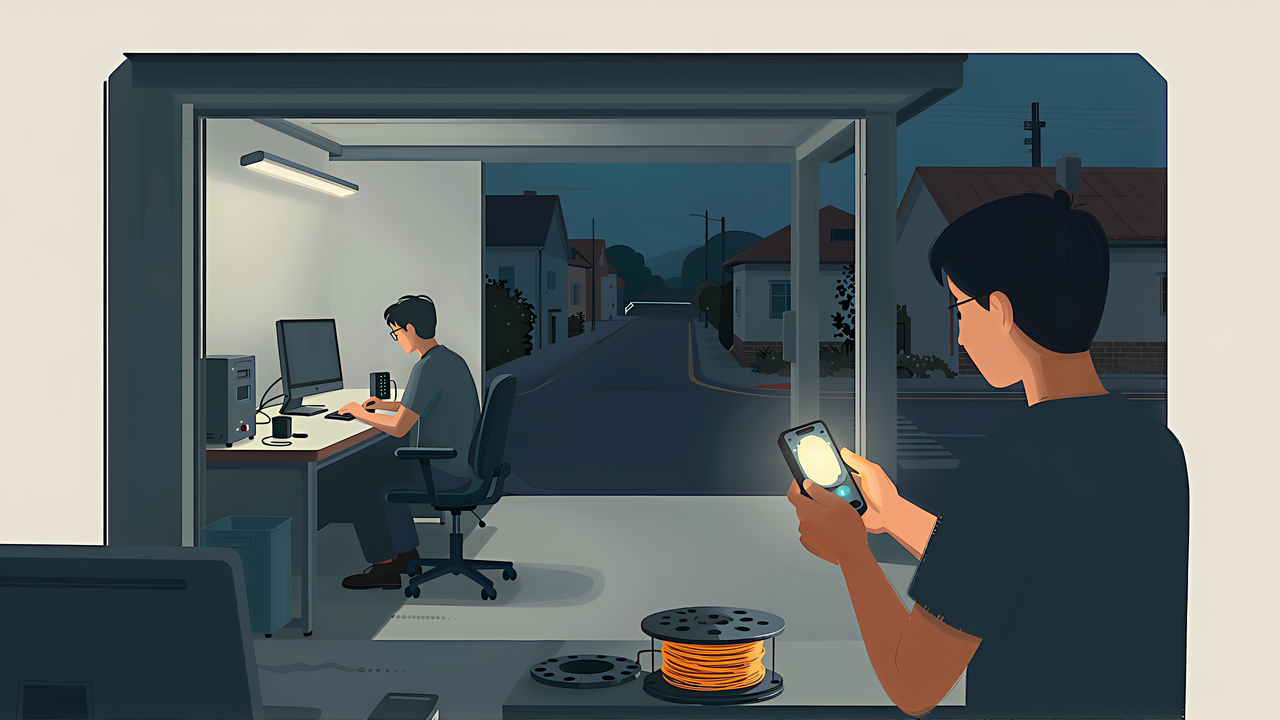
Routines move the work to the cloud. Remote Control does the opposite: the session keeps running on your machine and only the conversation opens outward, so you can pick it up from a phone on the couch or a browser on another computer.
That distinction decides what each is for. A routine cannot see your local files. A Remote Control session can see all of them, because it never left your desk.
When you start a Remote Control session, Claude keeps running locally the whole time. Code execution and filesystem access stay on your machine. Your MCP servers, tools, and project configuration remain available, and typing @ autocompletes file paths from your local project.
The conversation and the progress of subagents and dynamic workflows stay in sync across every connected device, so you can send messages from the terminal, the browser, and the phone interchangeably. If your laptop sleeps or the network drops, Claude Code reconnects when the machine comes back, queueing messages, permission prompts, and status updates in the meantime and delivering them once the connection recovers.
Remote Control is available on all plans. On Team and Enterprise it is off by default until an Owner enables the Remote Control toggle in Claude Code admin settings.
| Shape | Command | What happens |
|---|---|---|
| Open an interactive session outward | claude –remote-control (short form –rc) | A normal interactive session starts, connectable from other devices |
| Open one you are already in | /remote-control (or /rc) inside a session | The current conversation continues, now reachable from outside |
| Server mode | claude remote-control | Listens without an interactive prompt and creates a session per connecting device |
There is a one-time confirmation the first time. In server mode Claude Code explains what Remote Control does and asks Enable Remote Control? before starting; in a session, a dialog appears before /remote-control connects. Declining does not disable anything permanently; it asks again next time.
While connected, an /rc active indicator appears in the prompt footer and links to the session on claude.ai. Run /remote-control again to see the session URL and a QR code, or to disconnect while the local session keeps running.
This is the part that changes how a long task feels. Once notifications are set up, Claude Code can push when a permission prompt or a question is waiting, so a run that would have stalled until you came back to the desk instead reaches you wherever you are.
In the terminal, /config offers Push when Claude decides for proactive notifications and Push when actions required for permission prompts and questions. Separately, after you answer several permission prompts in a session, Claude Code surfaces an Approve tool calls from your phone notification with the session URL, and removes it when your next turn starts.
A connected device also shows the diff of your uncommitted changes when the session’s directory is a git repository. The device requests it over the connection and Claude Code computes it on your machine; with a clean working tree it serves your branch’s changes since it diverged from the default branch.
Three limits are worth knowing before you rely on this for anything unattended.
All traffic travels through the Anthropic API over TLS, the same transport security as any Claude Code session. The connection uses multiple short-lived credentials, each scoped to a single purpose and expiring independently. When a server’s registration credential expires, the server re-registers and keeps serving its sessions.
Trusted Devices, currently in beta and available on Team and Enterprise plans, ties Remote Control access to a known device and a recent authentication rather than just a signed-in account. Enrolled devices are listed at claude.ai/settings/account, removing one revokes its credential immediately, and credentials expire on their own if not renewed, so an unused device drops off the list.
In an interactive session the indicator changes to show the failure and Claude Code explains the reason in a notification. Run /remote-control to reconnect, unless the reason says the session changed somewhere else: another connection took it over, or it was ended or archived from another device. In those cases reconnecting takes it back, which you may or may not want.
Server mode has its own recovery. Stopping a server with Ctrl+C leaves its sessions unreachable but not archived, and running claude remote-control in the same directory brings back every session it was serving. The –continue and –session-id forms bring back one. These work for about four hours after the server stopped.
For this site, the honest answer is that it suits some waits and not others. A workflow run of ten to fifteen minutes is a good fit: start it at the desk, step away, watch the phases fill on a phone, and answer the one permission prompt that appears. A three-minute task is not worth the setup.
The failure mode to plan for is the opposite of the routine’s. A routine keeps going because nobody can stop it. A Remote Control session stops the moment it needs an answer, and if your phone is in another room it stops for as long as that takes. The push notification settings are not a nicety here; they are what makes the arrangement work at all.
Browser work is a separate capability with its own permission model: the Claude in Chrome extension grants access per site, and Claude can only act on sites you have permitted. That is a real boundary, but it is a coarse one, because a site you approve for reading is also a site you have approved for clicking.
This site draws the line by task rather than by site. Reading a page, extracting a table, and checking that something rendered are fine. Publishing, deleting, purchasing, and anything else whose undo button is a support ticket are not, and those stay manual even when the site is already permitted.
Two further cautions. The browser shares your logged-in state, which is exactly why it is useful and exactly why it is risky: a session driving your browser is acting as you, everywhere you are signed in. And anything captured from the screen, whether a GIF recording or a screenshot, can contain account details from a logged-in page. Treat both as material you would not paste into a public issue.
The task was to read the scheduled-posts list in a WordPress admin screen and report which entries were missing a category assignment. It is a good example of the safe half: the session read a page it was already signed in to, extracted a list, and reported it. Nothing was clicked, nothing was published, and the result was a list we then acted on by hand.
That is the pattern worth copying. Let the browser answer questions; keep the answers’ consequences on your side of the keyboard.
Driving the browser and driving the whole desktop are different capabilities with different limits. Computer use in the CLI is a research preview on macOS that requires a Pro or Max plan, is not available on Team or Enterprise, and needs an interactive session, so it does not work in non-interactive mode with the -p flag.
It also approves per app and per session, and it warns you when an app has broad reach: terminals and IDEs are flagged as equivalent to shell access, Finder as able to read or write any file, System Settings as able to change system settings. Only one session at a time can control your machine, and pressing Esc anywhere aborts the current action.
The practical reading is that these tiers exist in descending order of precision, and Claude tries the precise ones first: an MCP server if you have one, then Bash, then Claude in Chrome for browser work, and only then computer use. If you find yourself reaching for screen control to do something a shell command could do, that is a sign to write the command instead.