Runway Gen-4 Turbo Complete Guide: High-Speed AI Video Generation, Motion Brush, Monetization, and Competitor Comparison (2026 Edition)
swiftwand swiftwand.ai
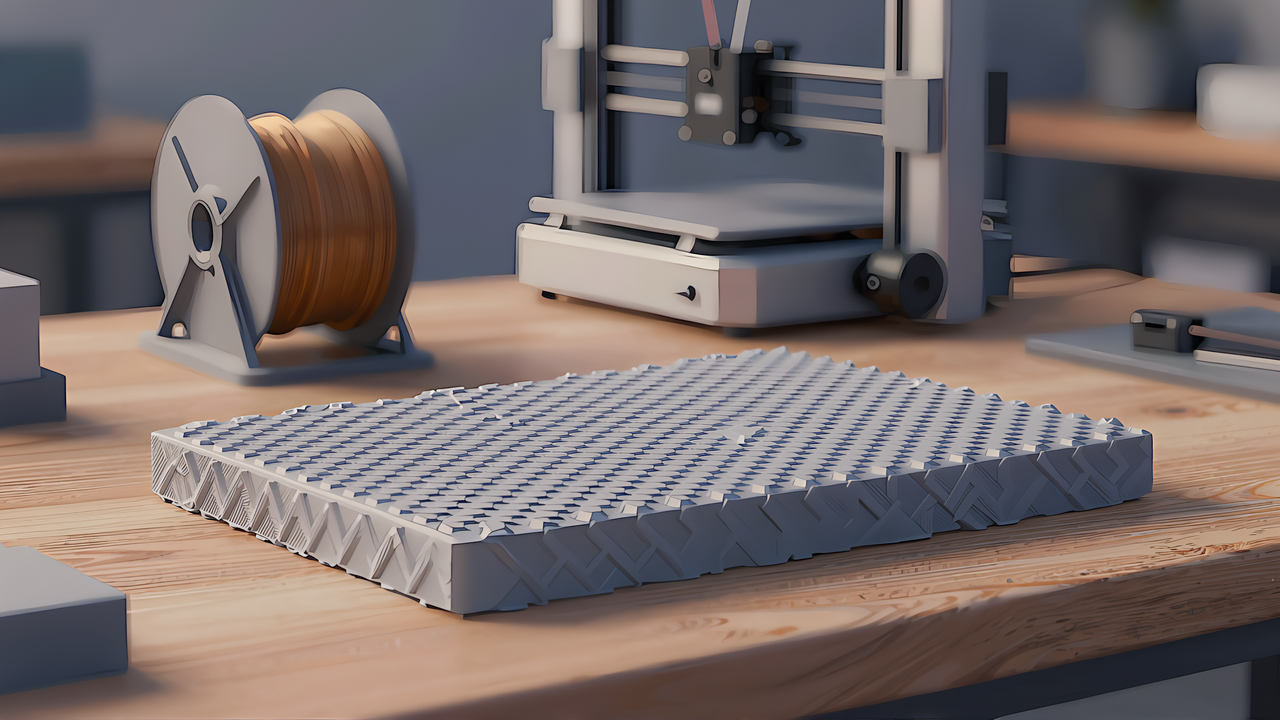
Have you ever wanted to carve a pattern into the surface of a 3D print? Grained leather, woven fabric, hexagonal tiles. Relief like this is called 3D print texture: the opposite of aiming for a smooth face, it deliberately adds a pattern. Where Stop sanding layer lines — slicer settings that make prints smooth (published 2026-01-28) was about making surfaces smooth, this article covers the other side: adding a pattern to the face.
This article contains affiliate links. As an Amazon Associate, we earn from qualifying purchases.
For the material we use AI image generation. If you read a black-and-white image as a “height map”, white areas rise and black areas sink. So if you have AI draw a pattern, you can translate it directly into surface relief. We had Z-Image-Turbo draw four kinds of patterns in a local ComfyUI, quantified the images in terms of seams, deformed the surface of a plate with Python, sliced it with the Bambu Studio CLI, and counted how print time and material increased.
Three conclusions up front. First, patterns drawn by AI do not line up at the left-right and top-bottom edges as they are, so tiling them produces seams. Second, blending the edges brings this site’s seam metric to 0, but when tiled 2×2 and inspected by eye, faint stripes remain. A metric of 0 does not necessarily mean “no visible seam”. Third, adding relief to a flat plate increased print time by about 54% and filament length by about 34% in our local Bambu Studio estimate. These are slicer estimates, not results of printing.
A height map is a grey image whose brightness is read as height. The OrcaSlicer wiki says white lifts the surface (“white lifts the surface by”) and black leaves it as it is (“black leaves it alone”). That is when the Midlevel is at its default of 0; in this case the relief only rises upward. Set the Midlevel to 0.5 and mid grey stays put, while lighter areas rise and darker areas cut in (the wiki: “mid grey stays put, lighter greys rise and darker greys cut in”).
The same idea is shared by 3D software. Blender’s Displace modifier moves vertices by texture brightness, and the reference value that does not move is called Midlevel. The displacement is a simple formula: “(pixel value − Midlevel) × strength”. OrcaSlicer uses the term Midlevel too. In short, making 3D print texture is the work of translating the light and dark of a pattern into height from the surface.
There are broadly two ways to roughen a surface. One wobbles the nozzle path during slicing to make the surface rough, without touching the model. The other, covered here, is a height map that rewrites the shape of the surface (the mesh) itself. The OrcaSlicer wiki also separates the two: fuzzy skin only perturbs the path and does not touch the model, whereas “texture displacement rewrites the mesh”. If you want to bake a pattern into the shape as data, you need the latter.
One more premise is essential. A height map can only move vertices that already exist (the wiki: “A height map can only move vertices that already exist”). On a shape like a flat plate, with vertices only at the four corners, no relief appears no matter how fine a pattern you give it. So the surface must be finely subdivided before deforming. Conversely, the finer the pattern you want to show, the more vertices you need, and that comes back as heavier slicing, as we will see. This subdivision also matters when we add relief with Python later.
Moving vertices with a height map is the same idea as Blender’s Displace modifier. If you want to handle meshes yourself, starting from Blender’s basics pays off.
The patterns were drawn by Z-Image-Turbo in our local ComfyUI (127.0.0.1:8188). Z-Image-Turbo is an image generation model released by Tongyi-MAI, licensed under Apache 2.0 (per the Hugging Face model card and the LICENSE file in the official code on GitHub). It is a distilled fast version, and the official recommendation is 9 steps (8 actual computations, 8 NFEs) with guidance 0. We matched those settings here. How to read the licenses of ComfyUI and models like this is covered in detail in Covering illustrations with local image generation — reading the ComfyUI and FLUX licenses correctly (published 2026-08-27).
We generated four black-and-white patterns — a grid, hexagons, a weave and cracks — each at 1024×1024 pixels in a single pass. We removed the two-stage 16:9 upscale used for article covers and kept them square. Each image took 10–34 seconds. To match the convention that white is high and black is low, every pattern was drawn in black and white.
What to watch here is the conditions that make a good height map. The OrcaSlicer wiki lists: no seams if it is to repeat like a tile, use the full range of light and dark, draw with flat light and no shadows, and do not make it too fine. Using photos, uneven lighting shows up as grid-like seams. The same applies when having AI draw: a pattern with clear light and dark and no shadows works more honestly as a height map than a “realistic” image with strong shading.
If you tile an AI-drawn pattern, seams appear unless the image edges line up. So we put a number on how well the edges match. There is, however, no single established metric for seam matching. The TexTile paper (CVPR 2024) notes that mixing existing metrics produces scores that do not correlate (“the current mix of existing metrics produces uncorrelated scores”). So what follows is this site’s definition, not an industry-standard metric.
The definition is this. First, convert the image to 8-bit grey (0–255). The left-right seam step is the average, over all rows, of the absolute difference between the leftmost and rightmost pixels of each row. The top-bottom seam step is the average, over all columns, of the absolute difference between top and bottom pixels. When tiled, the left edge comes next to the right edge, so the smaller this difference, the better the edges line up. Read as height, with Midlevel 0 white (255) rises by the Depth, so one grey level is about Depth ÷ 255 mm.
Measuring the four patterns as generated gave the table below (left-right / top-bottom, average difference of pixel values 0–255).
| Pattern | As generated, left-right / top-bottom |
|---|---|
| Grid | 122.8 / 145.4 |
| Hexagons | 17.8 / 21.2 |
| Weave | 76.0 / 19.5 |
| Cracks | 90.5 / 61.7 |
The edge differences are quite large: 122.8 left-right and 145.4 top-bottom for the grid, 90.5 and 61.7 for the cracks. Only the hexagons were small, at 17.8 and 21.2. In short, in this run the patterns Z-Image-Turbo drew did not line up at the edges by default, and tiling them as is produces seams.
This average has a weakness. Because it averages the differences between the outermost columns, it tends to miss uneven cases where most rows match but a few have a large step. As this site’s judgment, reporting the maximum or top 1% values alongside the average reduces such misreadings. Moreover, if you shift the image by half vertically and horizontally to bring the seams to the centre and look at it, you can map numbers to appearance one to one. The numbers are an aid; it is safest to keep the premise that a visual check is what finally counts.
There is an old trick for making edges match: shift the image by half vertically and horizontally (wrapping what spills over to the opposite side), bring the seams to the centre of the image, and blend them there. GIMP’s Offset and Tile Seamless and ComfyUI-seamless-tiling’s Offset Image all build on this idea. Here we blended by mixing the outermost edge columns 0.5 each so that they are equal, then returning to the inner values over 64 pixels.
With this processing, this site’s metric became 0.0 for all four patterns, both left-right and top-bottom. The metric looks only at the outermost edge columns, so making them equal by mixing naturally gives 0.
| Pattern | As generated, left-right / top-bottom | After blending edges, left-right / top-bottom |
|---|---|---|
| Grid | 122.8 / 145.4 | 0.0 / 0.0 |
| Hexagons | 17.8 / 21.2 | 0.0 / 0.0 |
| Weave | 76.0 / 19.5 | 0.0 / 0.0 |
| Cracks | 90.5 / 61.7 | 0.0 / 0.0 |
However, when we tiled the blended images 2×2 and looked at them, the hard step (the seam) was gone, but faint stripes remained where the blended band looked slightly flat. The phase of the pattern (where the period falls) does not match at the edges, so forcing a blend makes that area look like a groove. So even with a metric of 0, you cannot say “the seam is invisible”. To get a pattern that truly tiles cleanly, you have to choose a pattern whose period divides the image width, or generate it as a tile from the start.
This result also involves how the generator works. A node in ComfyUI-seamless-tiling called Seamless Tile makes edges connect by switching the padding of the model’s Conv2d (convolution) layers to circular. But the main model ComfyUI uses to run Z-Image takes in images through Linear (fully connected) layers, and that file has no Conv layers. The official code also takes them in with Linear. So this node likely has little effect on the Z-Image model itself, and if it helps at all, only on the VAE side that turns latents back into images. This is as far as reading the code goes, and we do not assert it. Indeed, as the table above shows, the edge steps were large as generated.
We checked how much relief affects printing using slicer estimates. We prepared a 60×60 mm plate, 2 mm thick, divided its top surface into a 160×160 grid, raised each vertex by up to 2 mm according to the brightness of the height map, and wrote a watertight (closed) STL. The pattern was the grid, using the edge-blended height map. The comparison was a flat plate of the same dimensions.
Slicing used our local Bambu Studio CLI. The printer was a Bambu Lab P1S, the profile 0.20mm Standard, the filament Generic PLA. We passed the plate STL and settings, wrote a 3MF with –slice, –export-3mf and –outputdir, and read the estimated time and material. The Bambu Studio used was 2.8.4 Public Beta (pre-release).
| Estimated time | Filament (mm) | Volume (cm³) | |
|---|---|---|---|
| Base (flat plate) | 50m 4s | 2475.3 | 7.2 |
| Textured plate | 1h 16m 55s | 3321.6 | 12.34 |
| Increase | About +54% | About +34% | About +71% |
Adding relief raised the estimated time from 50 min 4 s to 1 h 16 min 55 s, about 54% more. Filament length went from 2475.3 mm to 3321.6 mm, about 34% more, and volume from 7.2 cm³ to 12.34 cm³, about 71% more (12.34 ÷ 7.2). It bears repeating that these are estimates from our local Bambu Studio CLI, not values measured by printing on a real machine. This site did not print the plate. Still, they give a rough sense that adding 2 mm of surface relief moves time and material this much.
Time grows a little more than filament, and volume grows most, likely because relief mainly increases the amount of outer surface printed. Where a flat top could be filled in one sweep, the nozzle now moves up, down and sideways along fine peaks and valleys, stretching distance and volume. Another easily overlooked factor is the triangle count. As mentioned earlier, the finer the pattern, the more vertices you need, and the more triangles. The OrcaSlicer wiki gives an official example of baking a hexagon pattern onto a 50 mm plate in which 12 triangles grow to about 206,000 (this is OrcaSlicer’s example, not our measurement). More triangles make slicing time and file size heavier too. Relief trades visual density for heavier data and heavier printing.
Adding relief increased filament length by about 34% in the estimate. If you plan to try several patterns, keep extra PLA on hand.
So far we made the image and deformed the mesh ourselves. A feature that does this with interface operations alone arrived in OrcaSlicer 2.5.0-alpha: Texture Displacement. What follows is an introduction based on the official release notes, wiki and source (v2.5.0-alpha, a pre-release published 2026-10-16); this site did not operate this interface. The relief was added by this site’s Python code, as described above.
In the official description, it presses a pattern into the shape as real relief (“stamps a texture onto a model as real, printable relief”). There are more than 40 built-in seamless textures, and you can also load your own PNG, JPG or BMP. You set the Depth and Tile size in millimetres and run “Bake”. The defaults in the source are 0.4 mm depth, 12.5 mm tile size and Midlevel 0. The built-in height maps are 512 or 1024 pixels square, and the generation script’s default is 1024 pixels.
Baking has an important property. Whereas fuzzy skin only wobbles the path during slicing and does not change the model, baking rewrites the mesh itself (“baking changes the mesh itself”). So after baking you can slice, preview and export it like any other shape. Nothing changes until you run the bake, and a bake is undone with a single undo. Up to eight layers can be stacked, and colour images can add colour as well (we do not go into colour mixing here). Note that “Resolution” in the wiki is the triangle size (mm), not the number of image pixels. Halving it makes about four times as many triangles and increases slicing time and file size. OrcaSlicer itself is licensed under AGPL-3.0.
The seam issue shows up on OrcaSlicer’s side too, in a different form. When repeating a pattern over a surface, what the wiki calls “Mirrored repeat” flips every other tile so that the edges match. The seam disappears, but the pattern is mirrored left to right. The default mapping (Triplanar) avoids hard seams at corners, but instead the pattern blends in a band right at the corner (“the pattern cross-fades in a band right at the edge”). This is a “mapping seam”, separate from a seam in the image itself. The same problem we met in Python — a faint stripe left in the blended band — appears, in a different direction, on the interface-feature side as well.
Textured surfaces look even better painted. A coat of surface primer first makes the shadows of the peaks and valleys easier to see.
OrcaSlicer 2.5 also has a way to distribute height maps as a bundle. “Resource Texture” is a kind of plugin that adds height maps to the Texture Displacement choices. One plugin provides one pack, and the pack’s name appears in the interface as is. Distribution goes through Orca Cloud, where you can install packs others have published or publish your own. Packs can be swapped in the same way as plugins, and enabling, disabling and deleting take effect without a restart. Projects that already use a pack’s images keep working because they hold their own copies of the images.
The content rules match between the source and the wiki. A pack is distributed as a single wheel (.whl) file, and its name and version are read not from a separate definition file but from the wheel’s own METADATA. Images go in a single level inside the plugin folder; subfolders are not scanned. The extensions are png, jpg, jpeg and bmp, with up to 64 images per pack.
This site has not built or distributed a pack this way. The Orca Cloud pack listing page is rendered with JavaScript and we could not retrieve its content, so we do not cover how many packs exist now, or whether pricing or an account is required. The point to take away is that there is a route to bundle 3D print texture you drew yourself into a single wheel and share it with others.
Adding surface relief from images is neither a first for OrcaSlicer nor unique to it. Among slicers, ideaMaker got there early: version 4.1.0 (launched 2021-03-15) added a feature that adds relief to a surface from a grey image. ideaMaker turns the image into relief during slicing, and Raise3D’s guide for 4.1.0 notes that texture cannot be applied to flat surfaces parallel to the print bed (we did not check whether this changed in the latest version).
There are tools outside slicers as well. BumpMesh (CNC Kitchen, by Stefan Hermann) is a browser tool that adds relief to a mesh and exports it, and it can load your own image as a height map. As of its README, it has 101 built-in seamless textures and is set up so that 50% grey stays put, white pushes out and black pushes in. It is licensed under AGPL-3.0. In other words, the idea of baking relief into a mesh is common to several tools, not just OrcaSlicer.
For other slicers, we limit ourselves to saying we did not find it within what we checked. Looking at the release notes and source file names of Bambu Studio 2.8.4 Public Beta, PrusaSlicer 2.9.6 and 3.0.0-alpha12, and Creality Print 7.3.0, we found no feature that adds relief from a height map. But we do not assert that none exists. Two points are confusing. The “texture import” in Bambu Studio 2.8.4 is an improvement to importing coloured models, not a relief feature. And the “Displacement” mode in fuzzy skin in Bambu Studio, OrcaSlicer and Creality Print is the name of a method that roughens the surface by shifting the nozzle path sideways — a different thing from height-map displacement (PrusaSlicer’s fuzzy skin does not have this mode).
Finally, here is what the numbers in this article cannot say.
3D print texture sits exactly on the opposite side of the finishing that aims for smooth surfaces. Grasp the single point of translating a pattern into height, and the materials are surprisingly close at hand. Have AI draw a black-and-white pattern and read white as high and black as low.
As for the order of work, first understand the height-map conventions (white is high, Midlevel is the reference), then try how relief comes out with a small image. If you tile, check edge alignment with both numbers and your eyes — and do not relax even when the number is 0. Before sending it to print, look at how much time and material rise in the slicer estimate, so you know how heavy the finish will be. If you want to stay within the interface, there is Texture Displacement in OrcaSlicer 2.5; if you want to handle meshes yourself, there is Python or BumpMesh.
Carve a pattern into the surface, or make it smooth? Both are just two sides of the same question: “how should the surface look?” When you move to the side of adding relief, AI image generation becomes a way to prepare the base drawing quickly.