Recalculating 3D Printing Costs at Japanese Electricity Rates
swiftwand swiftwand.ai

This article contains affiliate links. As an Amazon Associate, we earn from qualifying purchases.
Print a sharp 90-degree corner. Look at the inside of the corner. If you see a tiny “blob” or a gap on the wall just past the corner, your printer is suffering from pressure-advance error: the extruder is over-pressurized at speed-up and under-pressurized at slow-down. Pressure Advance is the Klipper feature that fixes this — and unlike Marlin’s Linear Advance, it predicts decelerations as well as accelerations, which is why Klipper users see corner-squish disappear cleanly. This guide walks through the fluid mechanics behind Pressure Advance, the TUNING_TOWER procedure, per-filament target ranges, and the 2026 OrcaSlicer integration that automates the per-filament calibration entirely.
All references in this article come from the Klipper docs, the Klipper3d/klipper repository, and the OrcaSlicer 2.4 release notes — verified as of May 2026.
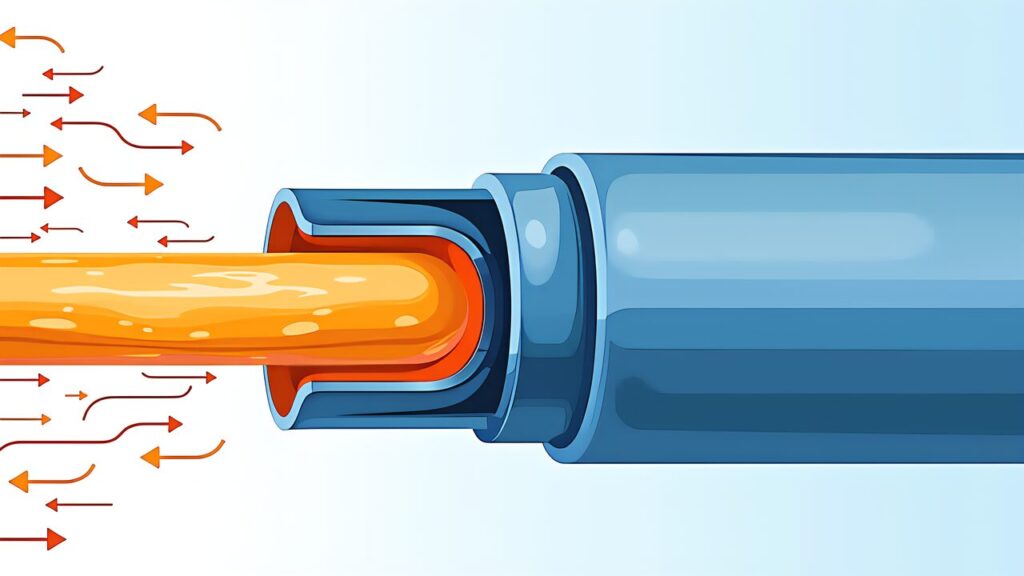
Molten plastic in the hot zone of an extruder is a viscoelastic fluid. When the extruder ramps up flow rate, pressure inside the melt zone takes time to rise; when it ramps down, pressure takes time to fall. Visually, this means: at the start of a fast move, the nozzle is under-extruding for the first millimeter or two; at the end of a fast move (deceleration), it over-extrudes. The result is a thin wall just past every speed-up and a fat blob just past every slow-down. Bond layer marks at corner inside are the most visible symptom.
Pressure Advance pre-feeds and pre-retracts the extruder to match the predicted pressure curve. Concretely: when the planner sees an upcoming acceleration, it pushes the extruder a bit faster than the geometric flow rate would suggest. When it sees an upcoming deceleration, it slows the extruder ahead of the actual move slowdown. The Klipper docs phrase it as “advance the extrusion to anticipate pressure changes.” The setting is one number per filament: pressure_advance: 0.05 in printer.cfg.
A direct-drive extruder needs a smaller value because the bowden tube doesn’t add compressibility. A bowden setup needs a larger value because the PTFE tube itself acts as a spring. Beyond the geometry, the value also depends on the filament: PETG is more viscous than PLA at the same temperature, so it needs a slightly larger PA. TPU is dramatically more compressible and needs a value an order of magnitude larger than rigid filaments.

Marlin’s Linear Advance and Klipper’s Pressure Advance share the same idea but apply it differently. The official Klipper documentation explicitly notes that Pressure Advance “predicts pressure changes for both accelerations and decelerations,” whereas the standard Linear Advance implementation primarily handles acceleration. The practical consequence: corner-blob (“squish”) at the deceleration side is fixed by Pressure Advance and not by Linear Advance.
That’s why Klipper users frequently report sharper corners than Marlin users running similar print speeds. Linear Advance fixes the entry but leaves residual squish at the exit; Pressure Advance fixes both. If you ever wondered why your Klipper prints have crisper corners than your Marlin prints did at the same nozzle and filament, this is the reason.
Tuning Pressure Advance is also more direct because Klipper exposes a real-time TUNING_TOWER macro that varies the parameter as the print progresses. Marlin requires recompile-flash for each adjustment, while Klipper tunes from the same Mainsail web UI used for everything else.

The official tuning method uses TUNING_TOWER, a Klipper command that varies a parameter linearly as Z-height increases. You print a tall thin-wall test tower, set TUNING_TOWER to vary pressure_advance from low to high, and visually inspect which Z-height produced the sharpest corners.
The standard sequence (per the Klipper docs):
SET_PRESSURE_ADVANCE ADVANCE=0
TUNING_TOWER COMMAND=SET_PRESSURE_ADVANCE PARAMETER=ADVANCE START=0 FACTOR=0.005
Then start the print of the standard test tower (the docs include a download link). The macro adjusts the PA value at each Z layer; for a 50 mm tower, that’s a sweep from 0 to 0.05 if you used FACTOR=0.001, or 0 to 0.25 with FACTOR=0.005.
After printing, inspect with a flashlight at oblique angle. Look for the Z-height where the corner is sharpest with no inside blob and no gap. Measure that Z and back-calculate the PA value: PA = START + (Z * FACTOR). That’s your filament-specific value.
Save it to printer.cfg as pressure_advance: 0.0X in the [extruder] section, or use slicer per-filament settings to push it via G-code at print start. After saving and restarting Klipper, your corner-squish issue should be visibly gone.
Keeping one standard PLA+ spool as your baseline makes every comparison meaningful.

 ポチップ
ポチップ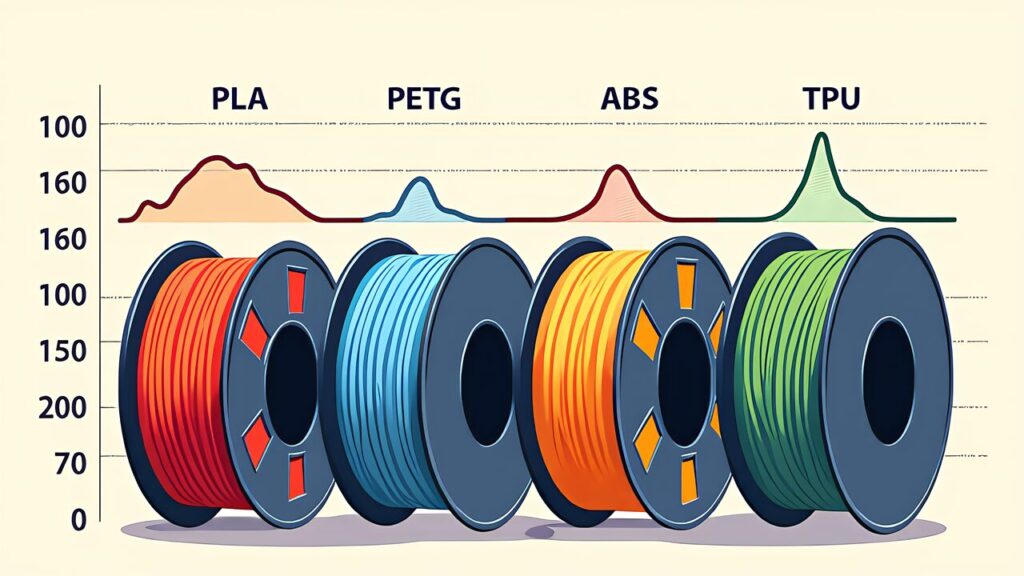
These are typical ranges. Always tune for your specific extruder + filament combo, but use these as plausibility checks.
| Extruder type | Filament | Typical range | Notes |
|---|---|---|---|
| Direct drive | PLA | 0.02 to 0.05 | Short filament path, low values |
| Direct drive | PETG | 0.04 to 0.08 | 50 to 100 percent higher than PLA due to higher viscosity |
| Direct drive | ABS | 0.03 to 0.06 | Varies with hotend temperature |
| Direct drive | TPU | 0.5 to 1.0 | High compressibility requires very large values |
| Bowden | PLA | 0.10 to 0.20 | PTFE tube compressibility adds in |
| Bowden | PETG | 0.15 to 0.30 | Higher than PLA |
| Bowden | ABS | 0.10 to 0.18 | Roughly PLA-equivalent on bowden |
Note: TPU on a bowden setup is rarely practical because PA needs to be so high (often 1.5+) that the extrusion lag itself causes problems. If you print a lot of TPU, switch to direct drive.
Also note: these ranges shift slightly with hotend temperature. A 5–10 °C change moves PA by 5–15 percent. If you’ve tuned at 215 °C and you change to 200 °C, expect to retune at the lower temperature. Most users settle on one temperature per filament type and tune once.
PETG gives you a second reference material with a very different failure mode from PLA.
 ポチップ
ポチップ
Klipper exposes pressure_advance_smooth_time as a secondary parameter. The default is 0.040 seconds; this controls how long the pressure-advance correction is averaged. Lower values follow rapid changes more aggressively but amplify noise; higher values smooth out the correction at the cost of corner-edge response.
In practice, the default 0.04 is correct for almost everyone. Touch this only if you’re running very high accelerations (15,000 mm/s²+) and seeing oscillation in the extruder feed; reducing to 0.02 can help. For typical 5,000–10,000 mm/s² Klipper builds, leave it alone.
Other adjacent parameters worth knowing about: max_extrude_only_velocity and max_extrude_only_accel govern the extruder-only moves used during PA. If you set PA aggressively (say 0.5 for TPU on direct drive), check that these limits aren’t being clipped — symptoms include warning messages in Klipper’s log about extruder velocity exceeded.
Finally, the SET_PRESSURE_ADVANCE macro can be set per-filament in the slicer. Most modern slicers (PrusaSlicer, OrcaSlicer, SuperSlicer) include a “filament-specific G-code at print start” option where you put SET_PRESSURE_ADVANCE ADVANCE=0.045 for PLA, then a different value for PETG. This is the canonical way to handle multi-filament workflows without restarting Klipper.
An accelerometer lets you measure resonance instead of guessing at input shaper values.
 ポチップ
ポチップ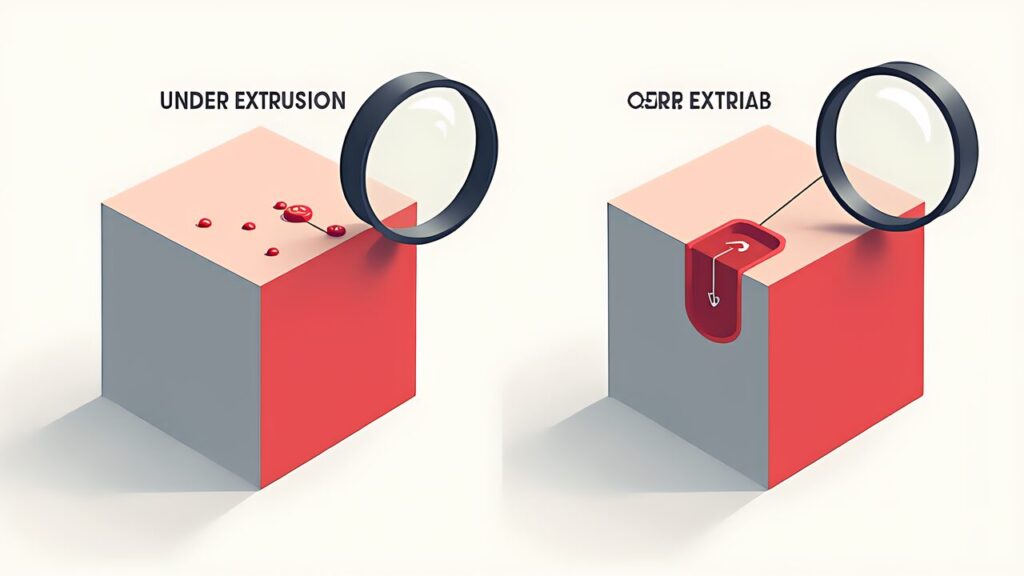
“My PA value tuned to 0.30 and now I get gaps in the wall.” Trap one: PA was tuned with a worn nozzle or partially clogged hotend. The pressure dynamics change with the nozzle’s cross-section. Replace the nozzle and retune — values should drop back into the typical range above.
“PA tuning shows different optimal values for top and bottom of the test tower.” Trap two: TUNING_TOWER assumes constant temperature. If your bed cools as the print rises (e.g., hot bed but no enclosure), PA shifts with temperature drift. Print the test in a more thermally stable environment, or tune at a single fixed Z range using shorter towers.
“PA is correct on test prints but wrong on real prints.” Trap three: real-world print speeds vary across the model, but TUNING_TOWER tests a single speed. PA is mostly speed-independent, but at very high speeds (250+ mm/s), the optimal PA drops slightly. If you print primarily at high speed, tune the test at that speed by setting perimeter speed in the test G-code to your actual print speed.

Modern Klipper workflows handle multi-filament PA via slicer profiles. Each filament profile in the slicer (PrusaSlicer/OrcaSlicer) has a “Filament Start G-code” field; place SET_PRESSURE_ADVANCE ADVANCE=0.045 there for PLA, SET_PRESSURE_ADVANCE ADVANCE=0.075 for PETG, and so on. The slicer emits the right command at print start.
For multi-material prints (an MMU2/3 on a Voron, a Box Turtle, a Bambu AMS-equivalent), you need PA changes mid-print. The slicer’s “Filament Start G-code” runs only at the start; mid-print, you need to inject SET_PRESSURE_ADVANCE in the tool-change G-code. Most multi-material slicer profiles already include a hook for this; verify yours does.
A clever Voron community technique: store all filament-specific PA values in a Klipper macro and call it by name. PRESSURE_ADVANCE_PLA, PRESSURE_ADVANCE_PETG, etc., each as a one-line macro. Then your slicer just calls the macro by name. This keeps the actual values in printer.cfg instead of scattered across slicer profiles.

OrcaSlicer 2.4 (released February 2026) ships with a Pressure Advance calibration tool that automates the entire TUNING_TOWER process. Pick the filament profile, click “Calibrate Pressure Advance,” and OrcaSlicer generates the test G-code, prints it, and presents a visual chooser for selecting the best layer. The selected value is then written back to the filament profile.
This works on any Klipper printer that OrcaSlicer can talk to (via a network printer profile, USB OctoPrint, or just save-and-load). The integration eliminates the most common error in PA tuning: misreading the test tower. Beginners can now tune PA correctly on day one.
OrcaSlicer also exposes the related calibrations — flow rate, max volumetric flow, retraction. Run them in this order: flow rate → max volumetric flow → Pressure Advance → temperature tower. Each calibration assumes the previous ones are correct. Doing them out of order produces inconsistent PA values that don’t match the test tower’s assumptions.
For PrusaSlicer and SuperSlicer users, similar third-party calibration extensions exist but are less polished than OrcaSlicer 2.4’s built-in version. If you’re actively tuning multiple filaments in 2026, switching to OrcaSlicer for the calibration steps and exporting back to your slicer of choice is a reasonable workflow.

Pressure Advance is the second of the two essential Klipper calibrations (Input Shaping is the first). With both correctly tuned, a Klipper printer shouldn’t lose visible quality as you push speed up. Without either, the speed/quality tradeoff is real and limiting.
In 2026, the workflow has matured: TUNING_TOWER for the manual approach, OrcaSlicer 2.4’s built-in calibration for the automated approach. Most users only need to tune PA once per filament profile, and the value remains stable as long as nozzle and temperature don’t change.
A practical reminder: the value you read in this article (or any other guide) is a starting point. Your printer’s extruder, your filament batch, your hotend condition all matter. Always verify with a TUNING_TOWER or OrcaSlicer calibration before committing the PA value to your slicer profile.
Up next: KAMP (Klipper Adaptive Meshing & Purging) — the print-time-saving plug-in that automates bed mesh and purge near the actual print region. After you have Input Shaping and Pressure Advance tuned, KAMP is the next biggest quality-of-life upgrade.