Plan the Batch Before You Print Forty Bins — Time, Filament, and Failure
swiftwand swiftwand.ai

This article contains affiliate links. As an Amazon Associate, we earn from qualifying purchases.
Klipper has three primary user interfaces — Mainsail, Fluidd, and KlipperScreen — and choosing between them shapes the daily workflow of a maker. Mainsail and Fluidd are web UIs you reach from a browser; KlipperScreen is the touchscreen UI that runs on a 5–7 inch display attached to the printer. The Creality Sonic Pad and BIGTREETECH Pad 7 are commercial all-in-ones that bundle these UIs into a packaged product. This guide compares them on philosophy, feature, ergonomics, hardware, and remote access — using the Klipper, Mainsail, Fluidd, KlipperScreen project sites and vendor specs as of May 2026.

Both Mainsail and Fluidd are web UIs for Klipper — open-source, GPL-licensed, and free. Both talk to Klipper via the same Moonraker API. So what’s the difference?
Mainsail emphasizes feature breadth. Macro Store (a community library of pre-made macros), system resource monitoring, syntax highlighting in the config editor, and a rich print-history view make it the better fit for makers who want all the data on screen. Recent versions add a built-in tool for viewing per-print thumbnails, and the project pushes regular feature updates.
Fluidd emphasizes responsiveness. The single-page design loads fast, settings changes apply immediately without page reloads, and the UI feels snappy on even modest hardware (like a Pi 4 with 2 GB RAM). It exposes most of the same Moonraker capabilities as Mainsail but with a tighter, more opinionated UI.
Practical observations from running both: Mainsail is the right choice if you spend a lot of time tweaking macros and configs in the browser. Fluidd is the right choice if you mostly print and only occasionally need to interact with the UI.
| Aspect | Mainsail | Fluidd |
|---|---|---|
| License | GPL / Open source | GPL / Open source |
| Price | Free | Free |
| Strengths | Macro Store, resource monitor, syntax highlighting, print history | Responsive, single-page, immediate setting reflection |
| Weaknesses | Feature-rich; potentially overwhelming for beginners | Lighter on history and stats features |
You can install both on the same Pi via KIAUH (they coexist on different ports), and many users do exactly that — switching between them based on what they’re doing. Mainsail for editing, Fluidd for monitoring during a print.

KlipperScreen is the dominant touchscreen UI for Klipper. It runs on a Raspberry Pi (or compatible SBC) with an attached touchscreen display, providing a fullscreen Klipper interface that doesn’t require a separate browser. The project is GPL-licensed and ships as part of every major Klipper distribution.
Hardware: any 5- or 7-inch HDMI or DSI touchscreen works. Common choices are the official Raspberry Pi 7-inch DSI screen (~$80) or aftermarket 5-inch HDMI touchscreens (~$30). Both are well-documented in the KlipperScreen wiki.
Functionally KlipperScreen exposes most of what Mainsail/Fluidd offer, but optimized for touch input and at-the-printer use. It’s the right tool for the moment when you want to start a print without walking back to your computer, or when you’re mid-print and just want to bump bed temp.
A common topology is to run all three: web UI for serious editing/monitoring from a desk, KlipperScreen on the printer for quick at-the-machine control, and remote access (covered later) for monitoring from anywhere.
Whichever UI you settle on, the calibration work that follows is the same. Input shaping and pressure advance are where a Klipper machine actually earns its speed, and lidar-equipped printers now automate part of it. Auto-calibration and input shaping compared covers what the sensors do and where manual tuning still wins.
Once the UI is settled, the next thing that actually changes print quality on Klipper is measuring resonance with an accelerometer instead of guessing at input shaper values.

 ポチップ
ポチップ
The Creality Sonic Pad is Creality’s commercial all-in-one Klipper terminal: a 7-inch touchscreen with a Linux-based controller (Tina Linux on Allwinner R818) running Creality’s own Klipper distribution. It’s pre-configured for Creality printers (Ender 3 V2/V3, Ender 5 S1, etc.) and ships at $159 (US, late 2025).
What you get: plug it in, follow a 10-minute setup wizard, and your Ender prints from a Klipper-driven workflow. No SSH, no kiauh, no printer.cfg editing required to get started. The included calibration sequences walk you through Pressure Advance and Input Shaping in a guided UI.
What you give up: Creality’s Klipper distribution is locked down. Updates come from Creality on Creality’s schedule. Upstream Klipper features that haven’t been backported aren’t available. SSH root access is not provided. If you need a feature that’s not in Creality’s build, you can’t add it.
A common path: start with Sonic Pad to learn Klipper, outgrow its limits in 6–12 months, switch to a Raspberry Pi + KIAUH setup for full upstream Klipper. The Sonic Pad becomes a backup terminal or gets sold on the second-hand market.
The BTT Pad 7 is BIGTREETECH’s answer to Sonic Pad: a 7-inch touchscreen all-in-one running Debian Linux (CB1 OS, Allwinner H616) with KlipperScreen pre-installed. It’s priced at $166.59 (3DJake retail, May 2026) — about $7 more than Sonic Pad.
What you get vs Sonic Pad: full SSH root access, full upstream Klipper via KIAUH (no vendor lock-in), an integrated ADXL345 accelerometer for Input Shaping out of the box, support for any Klipper-compatible printer (not just BTT-branded), and the option to swap the included CB1 for a CM4 if you want more compute.
| Aspect | Creality Sonic Pad | BTT Pad 7 |
|---|---|---|
| US MSRP | $159 | $166.59 |
| Shipping OS | Creality OS (proprietary) | Debian Linux + KlipperScreen |
| Klipper updates | Creality-distributed only | Free via KIAUH |
| SSH root | No | Yes |
| Built-in ADXL345 | No (separate purchase needed) | Yes |
| Compatible printers | Mostly Creality | Any Klipper printer |
| Learning curve | Low | Moderate |
| Extensibility | Low | High (CB1 to CM4 swap possible) |
Practically, BTT Pad 7 is the better unit for anyone who plans to grow beyond out-of-the-box Klipper. Sonic Pad is the better unit for someone who values guided setup and never expects to need root access.
A common upgrade path: starts with Sonic Pad on an Ender 3 (5-minute setup), eventually moves to BTT Pad 7 to support a Voron build. The Sonic Pad either gets sold or remains on the Ender as a dedicated terminal.
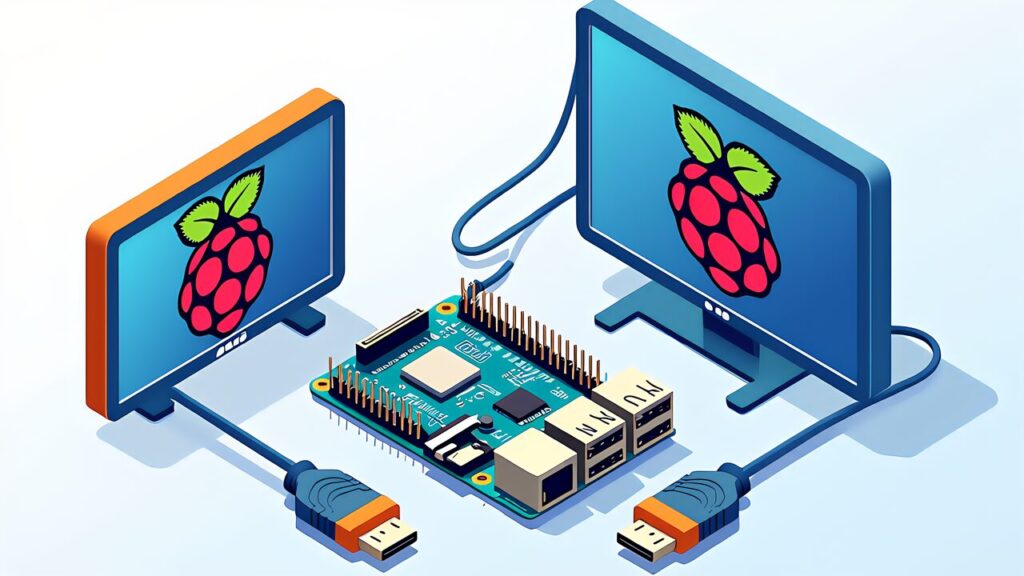
A Raspberry Pi 5 plus a 7-inch touchscreen plus MainsailOS gives you the same end-state as Sonic Pad/BTT Pad 7 — for roughly $80–120 instead of $159–166. The trade-off is your time: you have to do the assembly, install MainsailOS, install KIAUH, install Klipper/Mainsail/KlipperScreen.
Total time investment for a first-time DIY: 2–4 hours, including printing a touchscreen mount. For someone who has built one before: under an hour.
The DIY route is the right answer if you’re running multiple printers (one Pi can host multiple printers), need Pi-level compute for Obico AI inference, or want flexibility to swap displays/peripherals as needs evolve. It’s also the only path if you want a Pi 5 16 GB for combined Klipper + Obico + camera streaming.
It’s the wrong answer if your primary value is “don’t want to set things up.” Sonic Pad/BTT Pad 7 exist for a reason; for some makers, the $80 premium over DIY buys back several hours of setup time and considerable cognitive load.
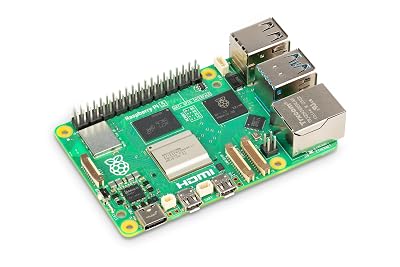
The Pi 5 that a DIY build starts from.

The decision tree by maker profile:
Most users end up with a hybrid: web UI as primary, with a touchscreen for at-printer convenience. If you only have desk space for one approach, web UI from a phone/laptop is enough — KlipperScreen is convenience, not necessity.
If you are reading this before buying the printer rather than after, the UI question comes second. The getting-started guide works through the hardware decision first, and most of the machines it covers can run Klipper with one of the UIs above.
Mainsail/Fluidd run on HTTP by default and don’t require authentication out of the box. Exposing the printer UI directly to the internet via port-forwarding is a major security risk: anyone who finds the IP can pause/cancel prints, change configs, and potentially issue G-code that damages hardware.
Safe options, in order of recommendation: Tailscale or WireGuard VPN to your home network (no port-forwarding required, encrypted, free for personal use); Obico for a managed remote-access service with proper authentication ($4/month Pro tier or self-host); Cloudflare Tunnel for HTTPS-fronted access with Cloudflare Access authentication.
Avoid: direct port-forwarding without HTTPS + authentication, public access from any IP, and dynamic DNS without a VPN layer. The convenience savings are not worth the risk.
Tailscale specifically is the easiest path. Install on the Pi (single-line script from tailscale.com), sign in with your account, install on your phone/laptop. Suddenly your printer’s Mainsail UI is reachable from anywhere via your Tailscale-issued IP — no port-forwarding, no public exposure.
Once remote access is working, the natural next question is what to do with the camera stream. Obico self-hosting, the competing monitoring services, and the fire-safety argument goes into the setup in detail — including why a self-hosted instance behaves differently from the cloud tier over a remote link.

Klipper’s state lives in printer.cfg, the Klipper repo at ~/klipper, the Moonraker config, and the slicer config separately on your computer. The microSD card running MainsailOS is the most fragile part — corrupt the SD and you lose everything if you haven’t backed up.
Minimum backup discipline: keep printer.cfg in a Git repo. Mainsail’s syntax-highlighted config editor has a “save” hook you can wire to push commits to GitHub or a private Git server. Or use Moonraker’s built-in config history (Klipper logs every config change to ~/printer_data/config/printer-*.cfg).
For full SD-card resilience, periodically image the SD card with Pi Imager or dd. A 16 GB image takes 5–10 minutes and saves you from a “the SD card died and I lost three months of tuning” scenario. Store the image somewhere off-Pi.
One caveat worth stating before the summary: a UI only shows you what the printer reports. If your prints are failing in ways no dashboard explains, the problem is upstream in the slicer or the hardware, not in Mainsail or Fluidd. 13 practical fixes for common print failures covers that side, and it pairs with whichever UI you land on.
Mainsail vs Fluidd is a philosophy choice, not a feature gap — both reach the same Moonraker API. KlipperScreen vs commercial Sonic Pad / BTT Pad 7 is a build vs buy choice — same UI, different packaging. The right answer depends on what you optimize for: tinkering vs zero-setup, single-printer vs multi-printer, beginner vs Voron-builder.
In 2026, the recommended starter setups: Ender 3 owner who values simplicity → Creality Sonic Pad. Voron builder → Raspberry Pi 5 + Mainsail + KlipperScreen on a 7-inch DSI screen. Multi-printer maker → Pi 5 16 GB hosting Mainsail with multiple Klipper instances, plus separate KlipperScreens on each printer if desired.
The good news: any of these paths works, the open-source community keeps all the UIs in lockstep with Moonraker, and switching between them later is a matter of installing the alternative via KIAUH and pointing your browser at it. There’s no irreversible UI commitment.
Up next: Obico AI × Klipper — the AI failure-detection layer that pairs naturally with whichever UI you pick. Detection runs against the camera stream that Mainsail/Fluidd already manage, integrating without UI conflict.