Gemini Prompt Engineering 2026 — Mastering 1M Tokens and Deep Think
swiftwand swiftwand.ai
“I pasted the Klipper configuration manual PDF into Claude, asked a question, and the next conversation no longer remembers any of it.” “I keep re-uploading the same documents to ChatGPT’s Custom GPTs every session.” The biggest frustration of AI chat is the absence of long-term memory. This third article in the series unpacks Google’s structural solution to the problem.
This article contains affiliate links. As an Amazon Associate, we earn from qualifying purchases.
On 8 April 2026 Google added the “Notebooks” feature to the Gemini App; on 17 April the rollout extended to Plus subscribers. The content of Gemini App conversations and the source sets you build in NotebookLM now sync bidirectionally. Claude and ChatGPT have no equivalent today, making “persistent knowledge base × large language model” a Gemini ecosystem strength worth exploiting.
ChatGPT, Claude, and Gemini App all default to a session-scoped memory model: conversation history is preserved within a session, everything older is dropped. This is an interface choice more than a model limitation. It serves two goals: privacy (older conversations are not used for training) and cost control (sending 1M tokens of historical context every turn would be uneconomical).
For business use, however, you frequently need an AI that does not forget. In 3D printing operations: your in-house design manuals, your printer.cfg version history, past failure logs, the spec sheets of Polymaker and Bambu filaments. The right structure is a stable knowledge base layered with the language model, queried on demand.
Getting consistent output is less about clever wording than about treating prompts as something you engineer and test.
NotebookLM is a research-style interface where you upload up to 300 sources per notebook (PDF, Google Docs, web pages, audio recordings, YouTube video transcripts). The model grounds every answer in those sources and provides inline citations. Hallucinations drop sharply because the context is closed.
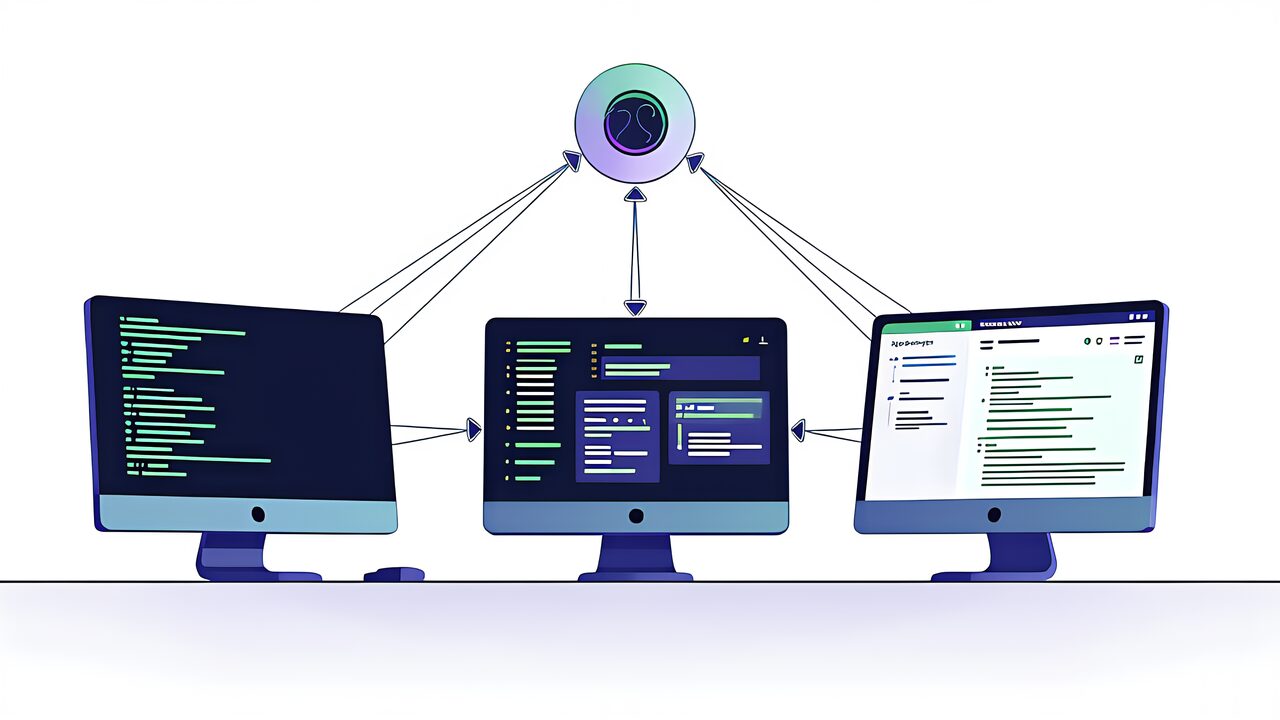
Notebooks in Gemini is the bridge between this curated source set and a normal Gemini App chat. When you reference a notebook in a chat — by attaching it or by name — the chat is constrained to the notebook’s sources for that turn, but you retain access to general Gemini reasoning afterwards. The combination gives you targeted, citation-anchored answers when you need precision and unconstrained reasoning when you do not.
Start with a single notebook scope. “Klipper configuration” is a good first target. Add the Klipper documentation HTML pages, your printer.cfg files (export as PDF or paste as text), and 5-10 of your most useful troubleshooting forum threads. Resist the urge to dump 200 sources; quality outweighs quantity. Each source should be one you have read and trust.
NotebookLM lets you set persistent instructions per notebook. Use them to encode the audience and tone: “You are answering for an experienced maker. Always cite the specific source for each claim. If sources disagree, surface the disagreement rather than choosing.” This eliminates the need to repeat instructions in every prompt.
NotebookLM’s Studio panel converts your sources into derived artifacts: an audio overview (two AI hosts discussing the topic, useful for review while working), a study guide, FAQs, a briefing document, or a mind map. For a Klipper configuration notebook, the FAQ is the most useful — it surfaces questions you should pre-answer for your future self.
From the Gemini App, attach the notebook to a chat with the “@” reference syntax. Now you can ask broad questions (“Why did my last print fail at layer 50?”) and the model will reason using both general knowledge and your specific configuration history. Answers cite the relevant sources, so you can verify before acting.
Once a tool starts running steps on its own, reliability becomes a design problem, and this build-along book walks through the patterns.
Pick a single high-value scope and build one notebook this week. The compounding gain comes from continued curation, not from a one-day push to fill every notebook slot. A maker who maintains three well-curated notebooks for the year out-performs one who creates twenty stale ones in a weekend.
The next article moves from interface-based AI to the terminal: Gemini CLI is the OSS, free, Apache 2.0 entry point to running Gemini agents on your own machine, in your own scripts, with no subscription required.